

cdent
New member
Softlog Macro for desyncs
For some time now, I've had problems leaving toons online for extended periods of time. After about a day, each of the toons I have logged on would either crash to desktop, freeze, or drop back to the character selection screen. This made it difficult to run macros, especially hand sampling resources, as you'd come back to the keyboard to find your character is offline. I asked Halyn about it and his theory was that the client would eventually lose sync with the server. Refreshing the client would allow them both to get back "in sync." Now the question was how to do this automatically. Here is what I've done.
Step 1: Character Selection screen
When logging into the game for the first time, make sure that whichever toon you're logging on, their name appears at the top of your list of available toons.
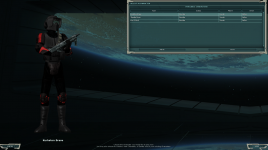
If the toon you're logging in isn't listed first, sort the available list until the toon you are logging in appears at the top of the list. In my setup, Kurkston is always first, followed by Theykin, and then Kirri. If I wanted to log Theykin in, I select his name, and then click on the NAME column header until his name appears at the very top of the list.
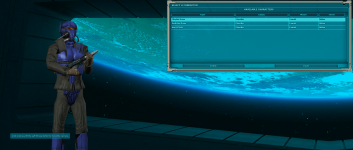
This is very important for the macro to run successfully. I will explain later on. Once you have your toons logged into the game, Use the following bit of code for your macro to "resync" your client with the server intermittently.
Step 2: Resync Macro
Go to your Command Browser, and to the Macro tab. Press the New Macro button. Give your new macro a name that is easy to type out, but also something that you'll remember it's purpose. I called mine "softlog(toon's name)" (ie softlogKurk, softlogTheykin, softlogKirri). I created 3 separate macros, because each toon does something a little different in each macro.
After you've selected a name, and chosen the icon, here is the basis of the macro you're going to program.
/ui action gameMenuActivate;
/pause 1;
/ui action defaultButton;
/pause 2;
/ui action defaultButton;
/pause 3600;
/macro (macro name);
/ui action gameMenuActivate: sends you back to the character selection screen. Here is where it's important that the character you're running this macro on appears at the top of the character selection screen.
/pause 1; Done just so the game has time to load the character selection screen without firing subsequent commands too quickly.
/ui action defaultButton; selects the character at the top of your character selection page.
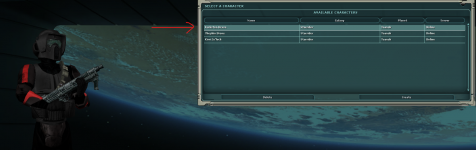
/pause 2; Done just so the game has time to load the character selection screen without firing subsequent commands too quickly.
/ui action defaultButton; Presses the NEXT button at the bottom of the character selection screen.
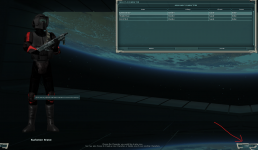
/pause 3600; I chose 60 minutes. I'm not sure if there is a limit to how many seconds you can program here, but 3600 (ie 60 minutes) works for me with no issue.
/macro (macro name); to loop the macro continuously.
This should prevent your character from crashing, freezing, or logging out to the character selection screen, while you're away from the keyboard.
Step 3a: Optional additions to the macro (surveyor only)
If you're a surveyor, there are additions to the macro you'll want to put in place to make sure after you softlog, that you continue sampling whatever you were sampling. Here is a sample of the macro I created for my surveyor (non-creature handler) toon:
/ui action gameMenuActivate;
/pause 1;
/ui action defaultButton;
/pause 2;
/ui action defaultButton;
/ui action toolbarPane00; // This command switches to toolbar Pane #0 where I have my survey tool located.
/pause 1;
/ui action toolbarSlot12; // This is the tool bar slot in tool bar Pane 0 where I have my survey tool located. If you want to create a separate macro for each survey tool located in your toolbar, feel free to make copies where this line would be (ie: toolbarSlot13, toolbarSlot14, toolbarSlot15) for the other survey tools.

/pause 1;
/sample; // NOTE: For this to work, you will have to sample the resource at least ONCE before running the macro, so that your survey tool will already know which resource you plan to sample.
/pause 3600;
/macro (macro name);
This version of the macro works great if you have a crafter/surveyor toon. Just make sure that your survey tools are located in the correct toolbarSlot##s in the correct toolbarPane##.
Step 3b: Optional additions to the macro (surveyor/creature handler)
One of my toons is not only a surveyor, but also a creature handler. This comes in handy when surveying on dangerous planets, around mobs that will attack you periodically.
/ui action gameMenuActivate;
/pause 1;
/ui action defaultButton;
/pause 2;
/ui action defaultButton;
/pause 15;
/stand; // Put this command in because if your toon was already kneeling before the macro last fired, when they log back in they will still be kneeling, and you have to start with the survey tool from a standing position.
/pause 1;
/ui action toolbarPane02; // Switches to the toolbar pane with my survey tool.
/pause 1;
/ui action toolbarSlot00; // Selects the survey tool. (remember, you have to have surveyed for the resource once before starting this macro)
/pause 1;
/sample; // Samples repetitively. No need to create a separate macro for sampling.
/pause 8;
/pause 1;
/ui action toolbarPane03; // Switches to the toolbar where I have my pets located.
/ui action toolbarSlot21; // Selects the first of 3 pets I want to bring out.
/pause 16; // I put a 16 second pause in here because pets take 15 seconds to spawn.
/ui action toolbarSlot22; // Selects the second of 3 pets I want to bring out.
/pause 16; // I put a 16 second pause in here because pets take 15 seconds to spawn.
/ui action toolbarSlot23; // Selects the third of 3 pets I want to bring out.
/pause 17; // I put a 17 second pause in here because pets take 15 seconds to spawn. And you're going to want to let all 3 pets spawn before the next command.
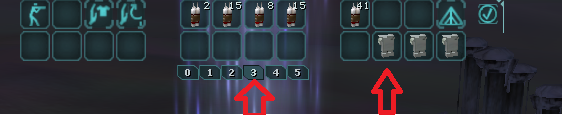
/ui action toolbarPane04; // This switches to the toolbar where I have my pet commands listed.
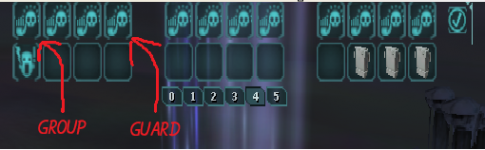
/ui action toolbarSlot00; // In my toolbar, this slot position is where I have the "Group" command located. This adds all 3 pets to my group.
/pause 1;
/tar Kirri; // I target myself, just so I'm sure the next command works as intended.
/ui action toolbarSlot03; // In my toolbar, this slot position is where I have the "Guard" command located. Now my pets will protect me against attack.
/pause 3600;
/macro softlogKirri;
In my version of this macro for Kurkston, after selecting all 3 pets, and adding them to the group, I have a /tar Theykin; command, so that the pets will guard Theykin while he's sampling.
Running these macros from your toons should allow them to stay online unmonitored, and continue to do what you put them to work doing.